Record replay files at the Tutor
Activity at the local machine can be recorded and shown to Students.
Record replay files
-
Select the Administer tab on the ribbon and click Replay Files.
Or
Select the Class tab on the ribbon, click the Show icon and choose Replay Files.
-
The Replay Files dialog appears.
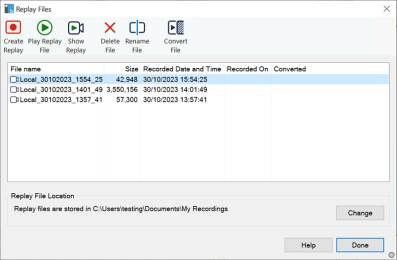
Existing replay files are listed.
-
Click Change to specify where replay files are stored.
-
Click Create Replay to start recording.
-
A dialog appears. Click OK.
-
The Recording
 icon appears in the taskbar. To stop recording, double-click this.
-
By default, file names are prefixed with Local and the date and time of the recording. You can rename the file by replacing the default name. Click OK.
-
The replay file appears in the list.
See also:
Showing replay files to Students
Record replay files for all Students
Record replay files for individual Students


