The Testing Console
Having used the Test Designer to create questions and exams, you use the Testing Console option in the NetSupport School CCE Tutor program to run the exam at student machines and monitor results.
Running an exam
-
Select the Feedback & Wellbeing tab on the ribbon and click Assessments.
-
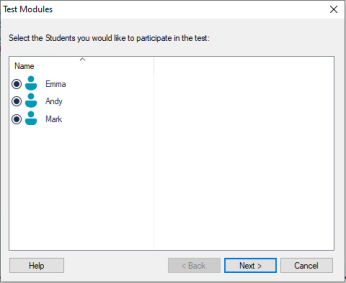
The Test Modules dialog appears.
-
From the list of connected students, select the student who will take the exam by selecting or clearing the check mark next to their name. Click Next.
-
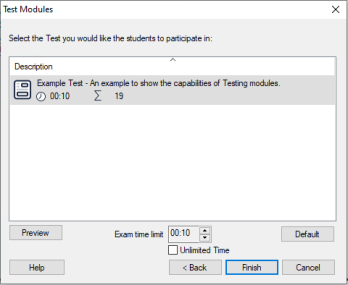
Published exams are listed.
-
Select the exam to run. If required, change the time limit for the exam. To preview the exam, click Preview. Click Finish when ready to run the exam.
-
The NetSupport School CCE Test Player automatically launches on the Student machines and a dialog appears, enabling you to administer the exam. Click Start Test to begin the exam. You can monitor students' progress throughout the exam.
See also: