Student Register
By default, NetSupport School will display the device name for the Students in the NetSupport School Tutor. However, there may be times when you want the Tutor to display the actual name of the Student and request additional information.
The Student Register option enables the Tutor to prompt the Students for their details.
To prompt Students to log in
-
Select the Student Register
 icon on the left-hand side of the Tutor Console.
 -
If specific Student details are required, select the relevant Students from the register list. Alternatively, to prompt all connected Students, leave the icons unselected.
-
Select Begin Register in the toolbar.
-
The Required Student Details dialog will appear.
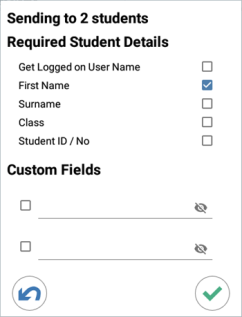
The Tutor can then select the information that the Student will be required to complete.
Required Student details
Decide which details to prompt the Students for. You can also add two custom fields to the form.
Note: If the Get Logged on User Name option is selected, the first name and surname will be greyed out and the Student name will automatically default to the login name. -
Select Send
 icon to send the form to Students. You can monitor progress as the Students respond.
Sign out
At the end of a lesson, you can reset the Student names using the Clear option.
-
Select the Student Register
icon on the left-hand side of the Tutor Console. -
Select Clear from the toolbar. Confirm that you want to unregister the Students.