Manage Student resources
Students can easily access any resources required during a lesson. The Tutor can create a resource list and add links to websites, applications and documents, this list is then displayed in the Student Toolbar providing Students with a quick and easy way to access the required resources.
To create a resource list
-
Select the Work Planner tab on the ribbon and click Student Resources.
-
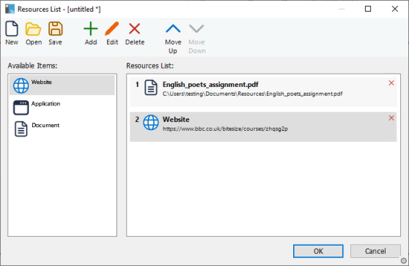
The Resources List dialog appears.
-
Select the required resource from the Available Items list and either drag and drop it to the Resource List or click the Add icon.
-
Enter a description and location for the resource.
-
If required, use the arrow buttons to change the order of the resources.
-
Click Save, enter a file name, and save the resource list.
The resources are displayed in the Student Toolbar.
See also: