Student Register
By default, NetSupport School will display the computer name of the Student machine in the Tutor Console. However, there may be times when you want the Tutor to display the actual name of the Student and request additional information.
The Student Register option enables the Tutor to prompt the Students for their details.
To prompt Students to log in:
-
If specific Student details are required, select the relevant Student icons in the Tutor Console. Alternatively, to prompt all connected Students leave the icons unselected.
-
Choose {File}{Register} from the Tutor Console drop-down menu.
Or
Click the Student Register icon on the toolbar.
-
Select Sign In from the available options.
-
The Student Register dialog will appear.
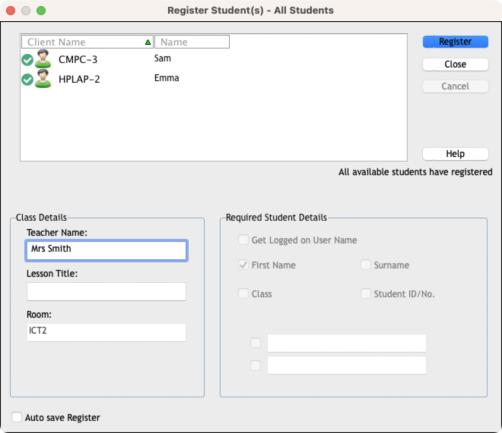
The Tutor can then select the information that the Student will be required to complete.
Sign out
At the end of a lesson, you can reset the Student names using the sign out option.
-
Choose {File}{Register} from the Tutor Console drop-down menu.
Or
Click the Student Register icon on the toolbar.
-
Select Sign Out from the available options. Confirm that you want to unregister the Students.
Registration Report
Student registration details can be stored in a report. To save the report ensure that the Auto Save Register option is enabled on the Student Register dialog when requesting the Student details. The report can be stored in CSV, HTML or XML format.
See also:
To display the login name of Students