Dealing with help requests
If a Student raises a help request, an alert will be raised at the Tutor, provided it currently has that Student connected. Any outstanding help requests will be visible to the Tutor with a Help Request icon displayed next to the Student and a badge indicating the number of outstanding help requests on the ribbon. This will show until that help request has been cleared.
To display current help requests
-
Select the Class tab on the ribbon and click Help Requests.
-
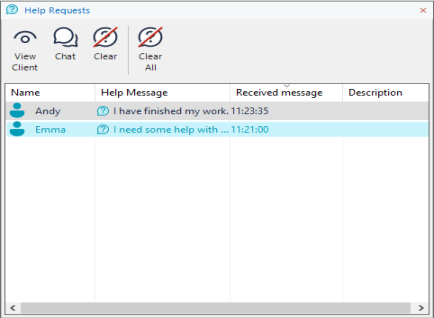
The Help Requests window opens and lists the outstanding requests.
-
To respond to a help request, click the View Client or Chat icons.
Note: When a Student raises an alert, the Student icon in the Tutor changes colour to indicate the type of alert: green for work is complete, amber for help needed and red for urgent help needed.
To clear help requests
Once you have dealt with the help request, select the required Student's request in the Help Requests window and click Clear or right-click the required Student icon and click Clear.
To clear all help requests, click Clear All in the Help Requests window.
See also: