To play a video file on a Student machine
You can show a video file to Students.
Playing a video to Students
-
Select the Class tab on the ribbon, click the Show icon and choose Show Video.
-
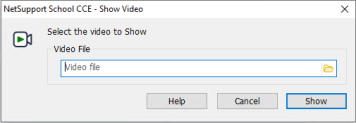
The Show Video dialog appears.
-
Select Open
 and browse for the video file.
 -
Click Show.
-
A check is made to ensure that the video file is available on the Student's device. If not, the video file is automatically copied to the Student device.
-
When the video file is launched, the Video Player control panel appears. You can use the standard playback controls, including Play, Stop, Pause, etc.
See also:
NetSupport School CCE Video Player