Show application
The Show feature enables you to display the Tutor screen to Students. However, if a number of programs are open at the Tutor, there may be occasions when you want to show a single application in isolation.
To show an application
-
Select the Class tab on the ribbon and click the Show icon.
-
To change the Show options, select the relevant option in the Show menu. To set further Show properties, click the More
 icon.
icon. -
Click Show Application.
-
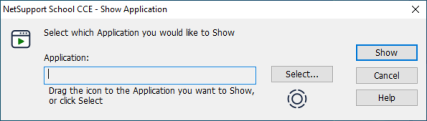
The Show Application dialog appears.
-
Drag the target
 icon to the required application on the Tutor desktop and release the mouse button. A pink border highlights the selected application.
Or
Click Select and choose the application from the list of running applications.
-
Click Show.
See also: